¶ General
With Subscriptions you have the possibility to schedule exports for your buyer organizations.
¶ Subscription type
The subscription type can be 'scheduled export' or 'triggered by availability changes'.
- A subscription with a 'scheduled export' type will trigger an export at a specific time period (set by cron expression based on UTC date time).
- A subscription with a 'triggered by availability changes' type will trigger an export whenever any availability changes are imported. Every export created using this type will be a delta export. This means that only the related changed articles will be exported. Use this type to be always up to date when availabilites has changed.
¶ Subscriptions
When you have buyer organizations associated, you can find in TecCom Portal under Article Data - Export Options a list of existing subscriptions for your buyer organizations.
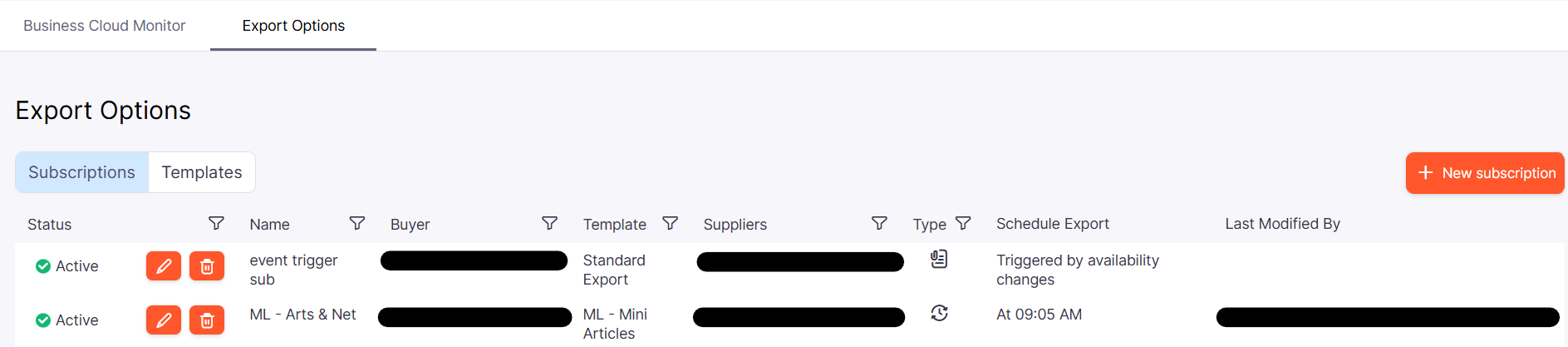
Here you can find all subscriptions belonging to your assigned buyer organizations.
On top of the list you find the active ones, after this the deactivated subscriptions.
The number of subscriptions for each buyer organization is limited to 50.
¶ Search and filter
With click on one of the filter icons in the header you have the possibility to filter your list.

You can select for
- one specific status
- subscription name
- one of your buyer organization, its preselect if you have only one assigned
- which template was used, the selection shows the TecAlliance standard templates and also the customized templates for the selected buyer organization
- all suppliers which provides data for the selected buyer organization
- subscription type (either scheduled export or triggered by availability changes)
if you have more than one buyer organization assigned you have to select first a buyer organization in the filter dropdown to get the list of suppliers and templates.
¶ New Subscription
You can create a new subscription by clicking on the New Subscription button.
A window will be opened, where you can add your requirements
Subscriptions with type "Triggered by availability changes" will be executed after the selected suppliers imported new availability data.
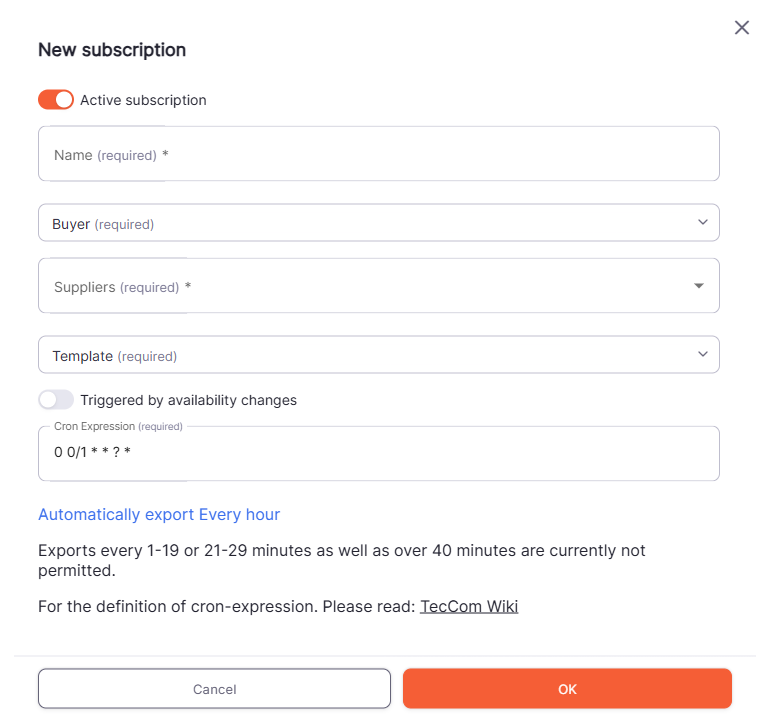
Mandatory is
- the name of the subscription (up to 50 characters)
- a selected buyer organization
- one or more suppliers selected (buyer organization has to been selected first)
- a selected template (buyer organization has to been selected first)
- the schedule - cron expression if not "Triggered by availability changes" is selected
By default the subscription is activated, to change this, click on the switch beside Active subscription.
Also by default "Triggered by availability changes" is deactivated, means the subscription will trigger scheduled exports. To change this, click on the switch beside "Triggered by availability changes".
Important, the subscription type and the buyer organization can't be changed after creating a subscription.
The list of suppliers and also templates will be filled after the selection of a buyer.
It will show only supplier which provides data for this organization.
For templates it will show the TecAlliance standard templates and also the customized templates for the selected organization.
¶ Edit Subscription
You can edit a subscription by clicking on the edit button in the list of you subscriptions.

A window is opened where you can change the subscription
You can change
- activate or deactivate the subscription (by clicking on the switch beside Active subscription)
- name of the subscription up to 50 characters
- list of suppliers
- the template
- the schedule - cron expression for scheduled subscriptions -> only for scheduled supbscription
Save your changes with clicking on the OK button. The window will be closed and you see the list of subscriptions again.
¶ Cron Expression
Cron expressions must be in format
Minutes Hours Day-of-month Month Day-of-week Year
| Field | Values | Wildcards |
|---|---|---|
| Minutes | 0-59 | , - * / |
| Hours | 0-23 | , - * / |
| Day-of-month | 1-31 | , - * ? / L W |
| Month | 1-12 or JAN-DEC | , - * / |
| Day-of-week | 1-7 or SUN-SAT | , - * ? L # |
| Year | 1970-2199 | , - * / |
Month as strings
JAN, FEB, MAR, APR, MAY, JUN, JUL, AUG, SEP, OCT, NOV, DEC
Day of week as strings
SUN, MON, TUE, WED, THU, FRI, SAT
Wildcards
- The , (comma) wildcard includes additional values. In the Month field, JAN,FEB,MAR includes January, February, and March.
- The - (dash) wildcard specifies ranges. In the Day field, 1-15 includes days 1 through 15 of the specified month.
- The * (asterisk) wildcard includes all values in the field. In the Hours field, * includes every hour. You can't use * in both the Day-of-month and Day-of-week fields. If you use it in one, you must use ? in the other.
- The / (slash) wildcard specifies increments. In the Minutes field, you could enter 1/10 to specify every tenth minute, starting from the first minute of the hour (for example, the 11th, 21st, and 31st minute, and so on).
- The ? (question mark) wildcard specifies any. In the Day-of-month field you could enter 7 and if any day of the week was acceptable, you could enter ? in the Day-of-week field.
- The L wildcard in the Day-of-month or Day-of-week fields specifies the last day of the month or week.
- The W wildcard in the Day-of-month field specifies a weekday. In the Day-of-month field, 3W specifies the weekday closest to the third day of the month.
- The # wildcard in the Day-of-week field specifies a certain instance of the specified day of the week within a month. For example, 3#2 would be the second Tuesday of the month: the 3 refers to Tuesday because it is the third day of each week, and the 2 refers to the second day of that type within the month.
If you use a '#' character, you can define only one expression in the day-of-week field. For example, "3#1,6#3" is not valid because it is interpreted as two expressions.
Examples
0/30 12-18 ? * * *
Every 30 minutes, between 12:00 PM and 06:59 PM
0/20 * * ? *
Every 20 minutes,
0/30 7-18 ? * MON-FRI *
Every 30 minutes, between 07:00 AM and 06:59 PM on Monday to Friday
0 0/1 * * ? *
Every hour
0 7 * * ? *
Daily at 7 AM
0 7 ? * MON-FRI *
At 07:00 AM, Monday through Friday
0 7 ? * MON,WED,FRI *
At 07:00 AM, only on Monday, Wednesday, and Friday
0 7 1 * ? *
At 07:00 AM, on day 1 of the month
0 7 ? * MON#1 *
At 07:00 AM, on the first Monday of the month
Hint, the schedule is base on UTC date time not on local time. This must be considered when choosing a special time in the cron expression for execution of the exports.
¶ Delete Subscription
You can delete a subscription by clicking on the delete button in the list of your subscriptions.
