¶ General
TecCom Managed Data - Import Monitoring offers a solution for suppliers to have an overview for existing imports, downloading previous imports or requesting a new one.
¶ Import mode
The import mode can be 'MODIFY', 'REPLACE' or 'REPLACE_LIST'.
- A MODIFY import represents an update of existing data and adds new data from import depending on import files. In some specific cases existing data will be deleted, e.g. for prices.
- A REPLACE mode represents deleting of existing data and adds new data from import.
- A REPLACE_LIST mode represents deleting of existing data depending on article number and brand and adds new data from import. Import zip-archives must include replace_list.csv.
 See also TecCom Business Cloud Import Specification
¶ Import Monitoring
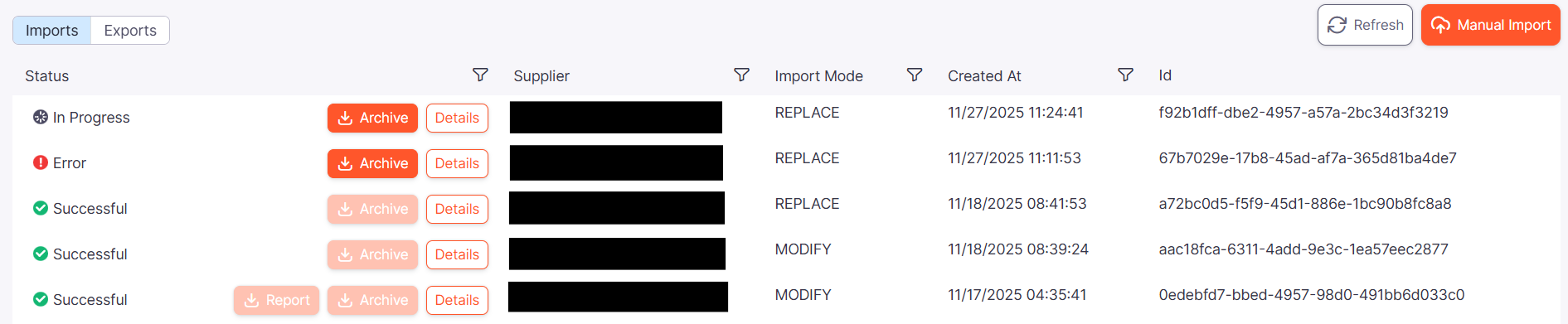
When you have supplier organizations associated, you can find in TecCom Portal under Article Data - Business Cloud Monitor a list of existing imports for your supplier organizations.
¶ Search and filter
With a click on one of the filter icons in the header you have the possibility to filter your list.

You can select for
- one specific status
- one of your supplier organization, its preselect if you have only one assigned
- import mode (either MODIFY or REPLACE or REPLACE_LIST)
- and when the import was created
¶ Download your Import
If the import was successful you can download the import by clicking on the Archive button.
You will get it as a zip archive.
Please Note: The imported file is available for download for seven days after it was created. After that, the Archive button will be inactive.
¶ Download Import Report
If you have active import validation rules and the import was successful you can download the report by clicking on the Report button.
You will get it in CSV format.
Please Note: The report file is available for download for seven days after it was created. After that, the Report button will be inactive.
¶ Details View
In your list of imports you can see the details by clicking on the Details button.
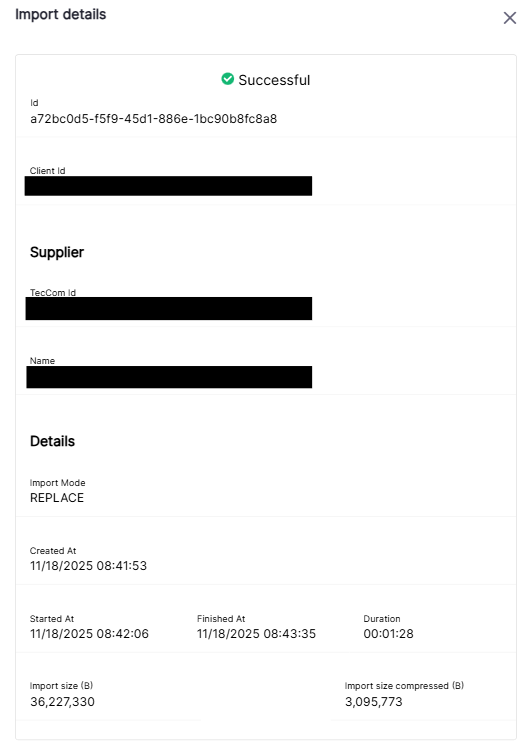
Here you can find import mode, your supplier organization, import size and compressed import size. In case of error you will also see the error message.
Also when and who created the import, can be done manually by user or by client.
¶ Manual Import
By clicking on the Manual Import button a window will be opened to run an import.
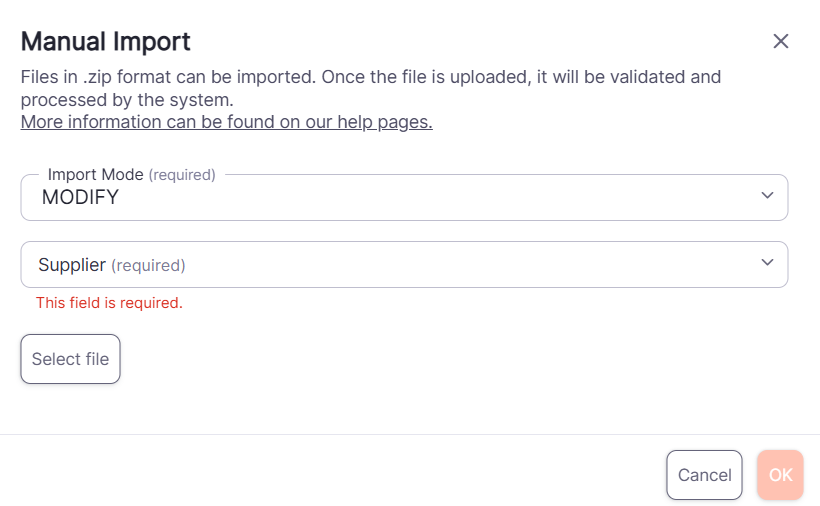
Here you have to select one of import modes.
Then one of your supplier organization.
And then a zipped file you want to import.
With clicking on the OK button, the pop up window will be closed you will see the import on top of your list and the import will be scheduled for processing.
Only zipped files are allowed.
¶ Refresh
To get the latest information click on the Refresh button on top of the list.